

Standalone QR Loyalty Scanner for Small Shops: Tablet and Phone Setup
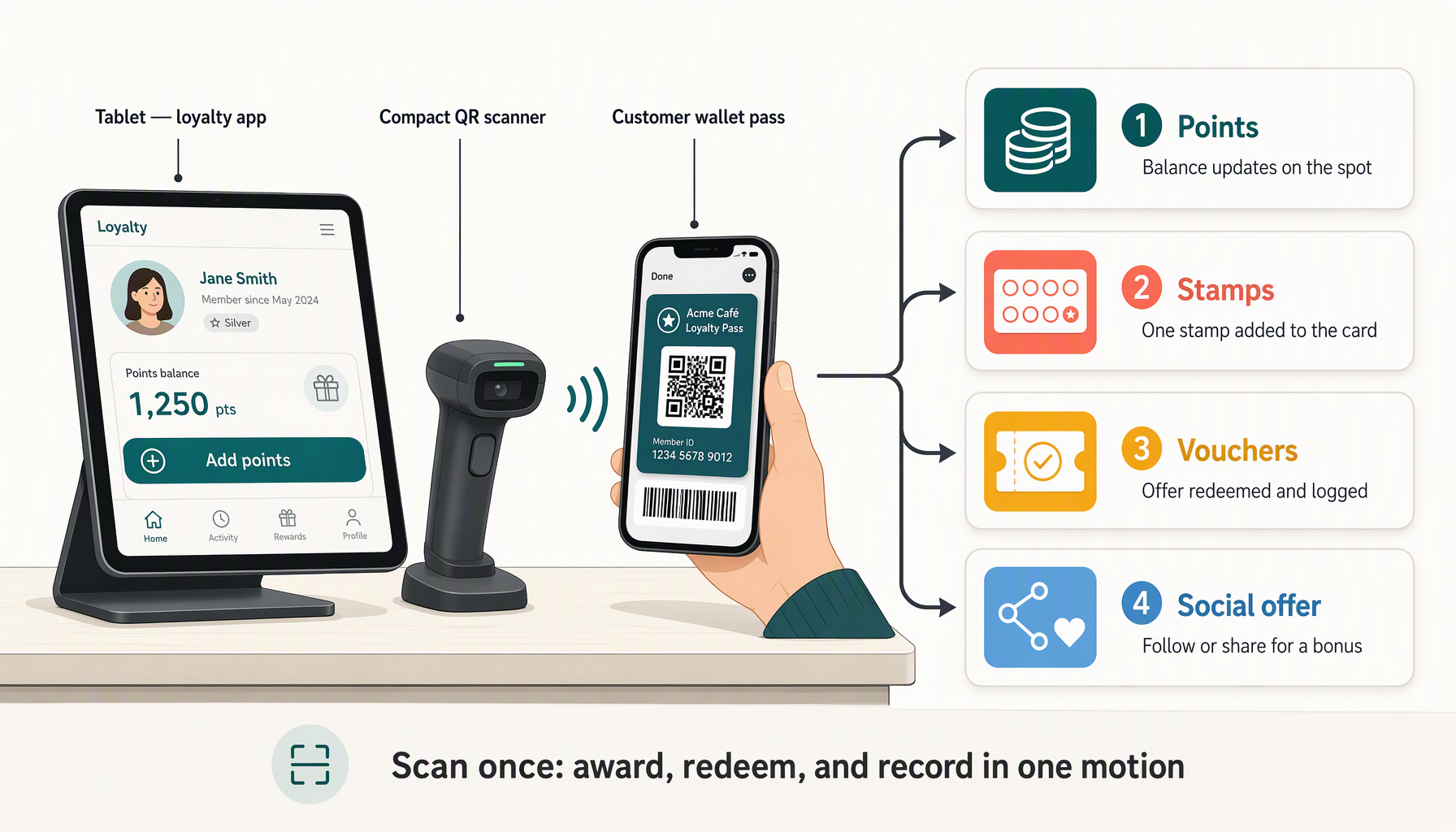
Many independent shops want digital loyalty without replacing the checkout system. A tablet or smartphone at the counter can handle the customer identification step while the existing POS continues to record the sale.
The setup can use the device camera, a USB QR scanner, or a Bluetooth scanner configured for the device. The scanner reads the QR code on the customer's loyalty card or wallet pass. The staff member then completes the appropriate Zea action: add a purchase or points, add a stamp, validate a voucher, redeem a reward, or move the customer into the next engagement step.
This approach suits a shop that needs a reliable staff workflow and does not yet have a verified automatic POS connection. It also gives the owner a practical way to start with one counter, one device, and one campaign.
Choose the scanning method that fits the counter
The camera is the easiest starting point. Zea's staff scanner can use a phone or tablet camera to read a QR code and resolve the payload. Staff can keep the device beside the register, scan the customer's pass, and follow the route shown by the platform. A camera also avoids buying another device, although the team needs a clear view of the code and a stable network connection.
A USB scanner works well when the shop wants faster repeated scans. Choose a model that reads QR codes and behaves as a keyboard input device, sometimes called a keyboard-wedge scanner. In that mode, the scanner types the decoded value into the active field and sends an Enter keystroke. The tablet, phone, browser, and scanner must support the same connection standard, so test the complete combination before buying several units.
A Bluetooth scanner can provide the same keyboard-style input without a cable. Pair it with the tablet or smartphone, check that the device reconnects after a shift change, and confirm that the scanner adds an Enter keystroke after each code. Some scanners use a proprietary mobile application instead of keyboard input. That can work, but it needs a different integration path and should not be assumed to work with the browser scanner.
Keep the camera as a fallback. Hardware can lose its pairing, run out of battery, or end up at another register. A staff member should still be able to complete the next customer interaction with the device camera or the manual member lookup flow.
Build one counter routine
The staff routine should take place in the same order every time:
- Ask whether the customer wants to use or earn benefits.
- Scan the loyalty card, wallet pass, stamp card, or voucher.
- Check the member and offer shown by Zea.
- Choose the action that matches the sale: purchase points, stamp, reward, or voucher.
- Finish the checkout in the shop's normal POS.
- Confirm the customer sees the updated balance or benefit when the action completes.
The scan identifies the person or offer. It does not replace the sale. If the shop awards points based on an amount, staff should enter or confirm that amount through the approved flow. If the program awards one visit stamp, the system can add one stamp after a successful scan. If the customer presents a voucher, staff should validate its terms before applying it.
Write the counter instructions on one page. Include the approved reward conditions, how to handle an expired voucher, what to do when a pass belongs to another shop, and who can resolve a failed scan. Train a second staff member to run the workflow without your help before launching it.
Connect every scan to the right engagement action
A standalone scanner is useful because it gives one customer interaction several valid destinations. The destination depends on what the customer presents and what the shop wants to achieve.
Rewards. A loyalty-card scan can open the member's earning flow, record a purchase, and move the customer toward a reward. Keep the earning rule easy to explain. “One qualifying purchase adds points” is easier for staff to deliver than a rule with exceptions they cannot remember.
Stamps. A stamp-card scan can add a visit or qualifying action. The system can show current progress and signal when the customer has completed the card. Decide whether the stamp is awarded before or after payment, and keep that rule consistent.
Coupons and vouchers. A voucher scan should show whether the offer is active, within its validity window, and available for redemption. Scanning should validate the offer before staff apply the benefit. An abandoned checkout should not consume a voucher if the configured flow supports a reservation or later redemption confirmation.
Social engagement. Social media can bring the customer to the counter. A post may feature a product, a seasonal offer, a referral invitation, or a QR claim path. The standalone scan then confirms enrollment, claim, purchase, or redemption. Treat a like or view as attention unless the platform and consented workflow record a more specific action. The scan gives the shop a stronger event to measure.
The customer should experience one relationship even though the shop may use different tools for checkout, scanning, social publishing, and messaging. The reward system is the common destination. Points, stamps, vouchers, and campaign follow-up should use the same member record when the customer has consented and the staff action is authorized.
Track the setup before expanding it
Run a small acceptance test with staff accounts and test offers. Scan a valid loyalty card, a stamp card, an active voucher, an expired voucher, and a code from another shop. Confirm that each result is clear and that a failed scan does not award anything.
Test the device in the conditions of a real shift. Try the brightest part of the counter and the dimmest. Scan a phone at low brightness and a phone with a cracked screen protector. Walk the device away from the Wi-Fi access point. Disconnect and reconnect the Bluetooth scanner. If the shop uses a USB scanner, unplug it and reconnect it before the next scan.
Record the time from scan to usable result. Also record how often staff need to ask for help. A fast scanner that sends customers to a confusing page still creates a slow counter. The measure that matters is a completed action with a clear customer result.
Keep the standalone path separate from receipt scanning unless the shop has designed the two flows to prevent double earning. If an employee adds points at the counter and the customer later scans the same receipt, the same purchase may be counted twice. Choose one earning source for each sale and explain the rule to staff.
Start with one device and one campaign
Use the setup to run one 14-day campaign. For example, invite first-time customers to join the loyalty card, give them a clear reason to return, and use the next scan to record the visit or redemption. Measure enrollments, qualifying visits, redemptions, and staff questions. Do not begin with every reward, voucher, and social channel at once.
Once the counter flow works, add a second destination. A stamp card may suit frequent visits, while a voucher may fit a seasonal product. A social post can promote the offer, and the scanner can close the loop at the counter. The shop can then review which actions create useful repeat behavior before buying more hardware or adding more automation.
Zea supports the staff-side loyalty, stamp, voucher, and QR-resolution paths that make this model possible. Hardware compatibility remains a setup question: test the exact tablet, smartphone, cable, Bluetooth pairing, browser, and scanner model together. Review Zea's customer engagement tools, then use the 14-day second-visit campaign guide to choose the first workflow.
Questions about standalone QR loyalty scanners
Do I need to integrate my POS first?
No. A standalone staff device can identify the member and run the approved loyalty action while the shop keeps its existing POS. Staff still need to complete the sale in the POS, and the shop should choose one clear source for awarding points on that purchase.
Can I use a USB or Bluetooth QR scanner with a tablet?
Often, if the scanner supports the tablet's connection method and sends the decoded code as keyboard input. Confirm the scanner's QR support, pairing or cable requirements, browser behavior, and Enter-key setting on the exact device before deploying it.
Can the same scan award points and a stamp?
The same customer identity can lead to both loyalty and stamp actions, but staff should know which action the purchase qualifies for. Avoid awarding two benefits by accident unless the offer explicitly allows it.
Can social media actions be counted at the counter?
Social posts can drive customers to a claim, enrollment, or offer. A scan can then record the customer or voucher action. A like, view, or follow should only count as a qualifying event when the platform and your consented workflow can verify it.
What is the best first setup?
Start with one staff tablet or smartphone, camera scanning, one loyalty card, and one simple campaign. Add a USB or Bluetooth scanner after the team has proven the workflow and knows which action should follow each scan.
See the POS integration guide if your shop wants completed orders to link to verified customer records automatically.